You’re probably dealing with one of two calendar problems right now.
Either you’re leaving Google behind and want everything inside Apple Calendar, once, cleanly, with no loose ends. Or you still live in both worlds. Work runs on Google Calendar, your iPhone runs Apple Calendar, and you need both to stay aligned without checking two apps before every meeting.
That split causes real schedule friction. A client call gets added on your work laptop but doesn’t show up on your phone. A family appointment appears in Apple Calendar but never makes it back to your Google view. Then the day starts running you instead of the other way around.
The fix isn’t complicated, but the right method depends on what you’re trying to achieve. If you want a permanent move, export google calendar to apple calendar with a one-time transfer. If you need both platforms active, use native sync and let updates flow both ways.
Table of Contents
Why Your Calendars Aren't Talking (And How to Fix It)
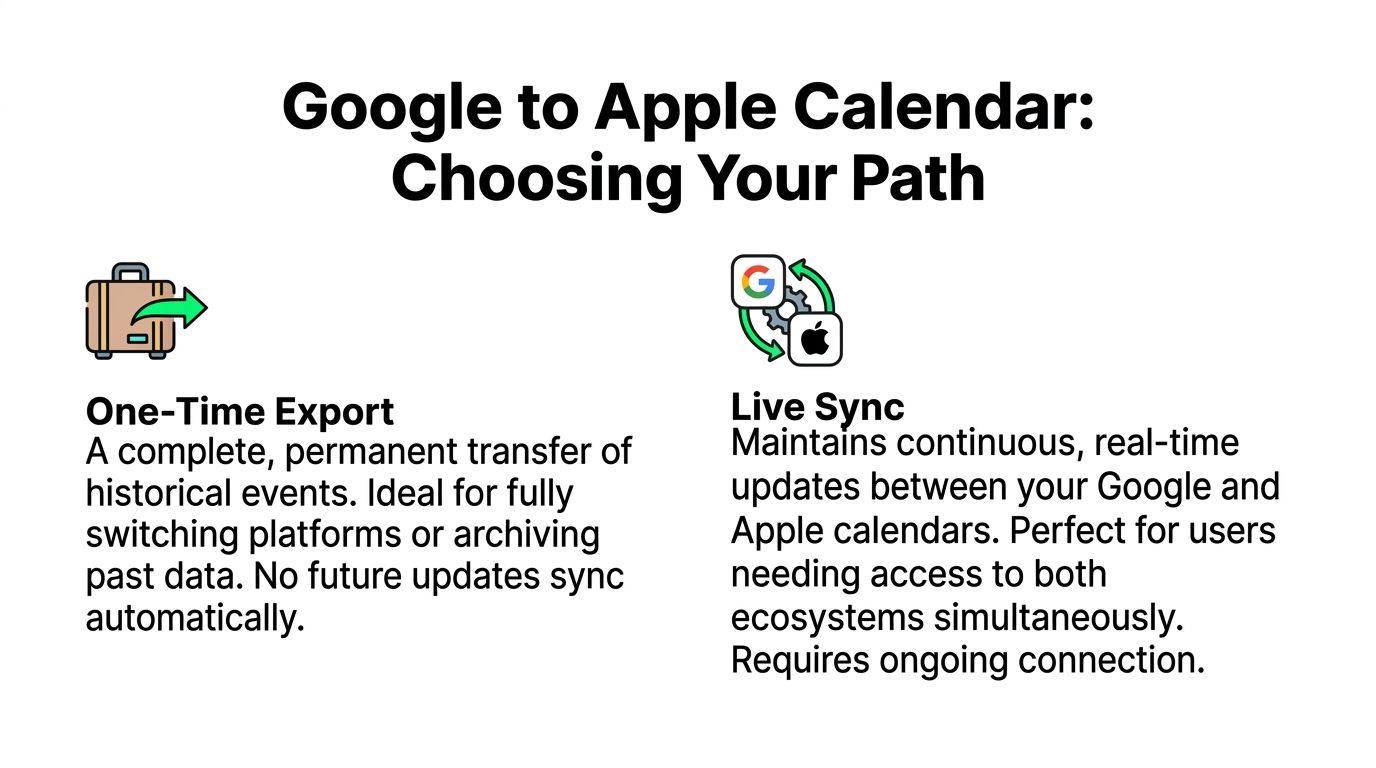
Choosing Your Method One-Time Export vs Live Sync
A strategic comparison
Use one-time export if
Use live sync if
The Clean Break A One-Time Google Calendar Export
When export is the right move
How to export and import on Mac
What to do on iPhone or iPad
Ongoing Harmony Setting Up a Live Sync with Apple Calendar
Who should use live sync
Set up on iPhone or iPad
Set up on Mac
Solving Common Export and Sync Problems
Duplicates after import
Timezone shifts and daylight saving issues
When sync looks stuck
Advanced Questions About Your Calendar Migration
Do recurring events transfer perfectly
What happens to attachments notes and rich location data
Should you export shared calendars
Why Your Calendars Aren't Talking (And How to Fix It)
A common failure point looks harmless at first. You glance at Apple Calendar on your phone, see an open afternoon, and accept a lunch meeting. Later, your work Google Calendar on the laptop shows a recurring team review already sitting there. Now you’re rescheduling, apologizing, and wondering why two mature calendar systems still feel disconnected.
That usually happens because the calendars are not connected in a way that matches your workflow. People often assume “visible on one device” means “managed everywhere.” It doesn’t. A manual export behaves differently from a live account connection, and treating them as the same thing creates the mess.
For busy operators, the primary goal isn’t just moving events. It’s building a calendar setup that supports smarter scheduling across work blocks, travel buffers, and personal commitments. If you’re also tightening how you structure your day, Formzz has a useful explanation of smarter scheduling and why buffer time matters when calendars start overlapping.
There’s also a second layer that is often overlooked. Calendar cleanup is really time management cleanup. If your schedule is fragmented across apps, your attention gets fragmented too. This practical guide to https://www.superchat.ai/blogs/ai-for-time-management is worth reading alongside your calendar setup because the tool choice only helps if the workflow behind it makes sense.
The problem usually isn’t Apple Calendar or Google Calendar. It’s choosing a connection method that doesn’t match how you actually work.
Two paths solve this. One is a clean break, where you move your Google history into Apple Calendar and leave it there. The other is a live ecosystem setup, where both calendars keep updating together. Pick the right one, and your schedule stops feeling split.
Choosing Your Method One-Time Export vs Live Sync
The best way to export google calendar to apple calendar depends on what you want after setup day.
If you’re switching platforms and want Apple Calendar to become your single source of truth, use a one-time export. If your job, clients, or team still operate in Google, use live sync instead. The mistake I see most often is choosing export when the person needs coexistence, or choosing sync when they really want independence and privacy.
A strategic comparison
Decision point | One-time export | Live sync |
|---|---|---|
Best for | Permanent switch to Apple | Ongoing use of both ecosystems |
Update behavior | Static, one-way transfer | Continuous two-way updates |
Privacy posture | Local file-based migration | Ongoing account connection |
Shared calendar handling | More manual review needed | Better for active collaboration |
Maintenance | Manual repeat if Google changes later | Mostly set-and-forget |
Use one-time export if
You’re leaving Google Calendar for good. You want your historical schedule moved into Apple Calendar and don’t want an ongoing Google link on your devices.
You want more control over what gets imported. Export lets you choose calendars and inspect results before merging them into your main Apple setup.
You prefer a backup-style transfer. An exported calendar file gives you a clean handoff rather than a permanent bridge.
Use live sync if
Your work still depends on Google Calendar. That’s common when a company runs on Google Workspace and your personal device is an iPhone or Mac.
You need edits to appear everywhere automatically. Adding, moving, or canceling an event in one place should update the other with no manual import step.
You work with shared or team calendars. Active collaboration is where sync usually beats export.
Decision rule: If your calendar needs to keep changing in both places, don’t export as your main setup. Sync it. Export is for migration, not day-to-day coordination.
The practical trade-off is simple. Export gives separation. Sync gives continuity. One is a move. The other is a relationship.
The Clean Break A One-Time Google Calendar Export
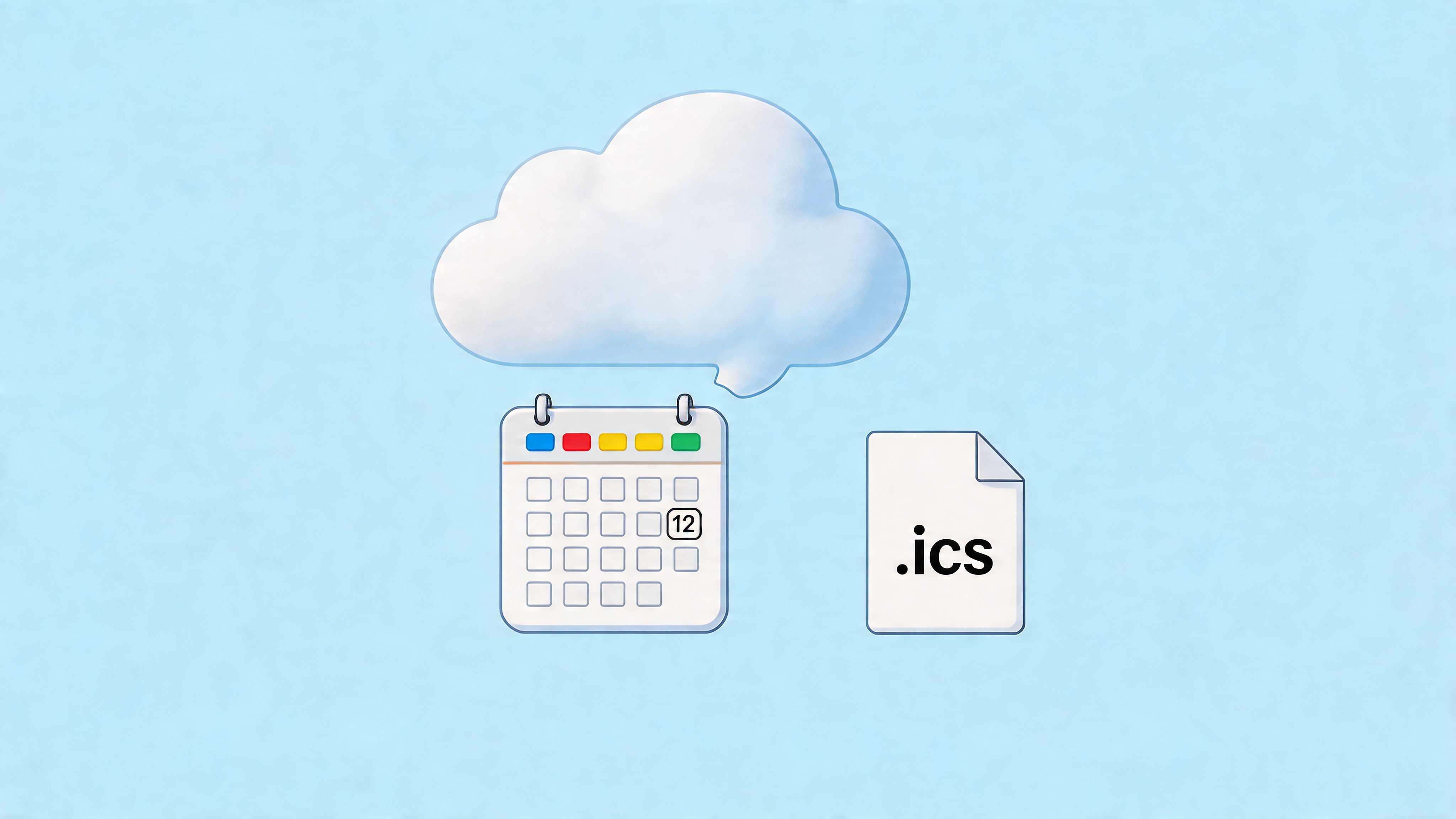
If you’ve decided to leave Google Calendar and make Apple Calendar your main system, export is the cleanest route. Google’s export uses the iCalendar (.ics) format, introduced in 1998, and Google says this format supports event transfer into Apple Calendar with 100% compatibility for events, recurring patterns, and reminders when imported through the supported workflow (Google Calendar help).
When export is the right move
Choose this path when you want a permanent migration, not a live connection.
That usually fits:
professionals switching from Android or Google-first workflows to Apple devices
founders simplifying a messy tool stack
people who want calendar data inside Apple’s ecosystem without keeping Google attached
It’s less ideal if your team still updates shared Google calendars every day. In that case, your imported Apple copy will age fast.
How to export and import on Mac
Mac is the safest place to do this because Apple Calendar gives you better visibility and cleanup tools during import.
Open Google Calendar on the web. Go to Settings, then Import & Export.
Export your calendars. Google downloads a ZIP file containing one or more .ics files.
Unzip the download right away. Keep the extracted files in a clearly named folder.
Open Apple Calendar on your Mac.
Create a temporary calendar first. Name it something obvious like “Google Import.”
Drag the .ics file into Apple Calendar or import it into that temporary calendar.
Review before merging. Check date ranges, recurring meetings, and all-day events.
Move approved events into your main iCloud calendar only after the import looks right.
Why the temporary calendar matters: it gives you a quarantine zone. If the import creates duplicates or weird recurrence behavior, you can delete the imported calendar without touching your live one.
Don’t import straight into your primary calendar if the Google history is large or messy. Temporary isolation makes rollback easy.
What to do on iPhone or iPad
For a one-time import, iPhone and iPad are less comfortable than Mac. The files can be stored and opened there, but cleanup is harder, especially if anything arrives incorrectly.
If you only have an iPhone or iPad, the safest practical move is:
export from Google on the web
save the file accessibly
import with a Mac if possible
then let iCloud push the cleaned Apple Calendar to your mobile devices
The biggest thing to remember is this: export is one-way. Once you import the .ics file, future changes in Google Calendar won’t keep syncing into Apple Calendar automatically. If you continue using Google afterward, you’ll need to repeat the process manually.
Ongoing Harmony Setting Up a Live Sync with Apple Calendar
Live sync is the right answer if you use Google Calendar for work but Apple devices for everything else. It keeps both systems active without forcing you to choose one.
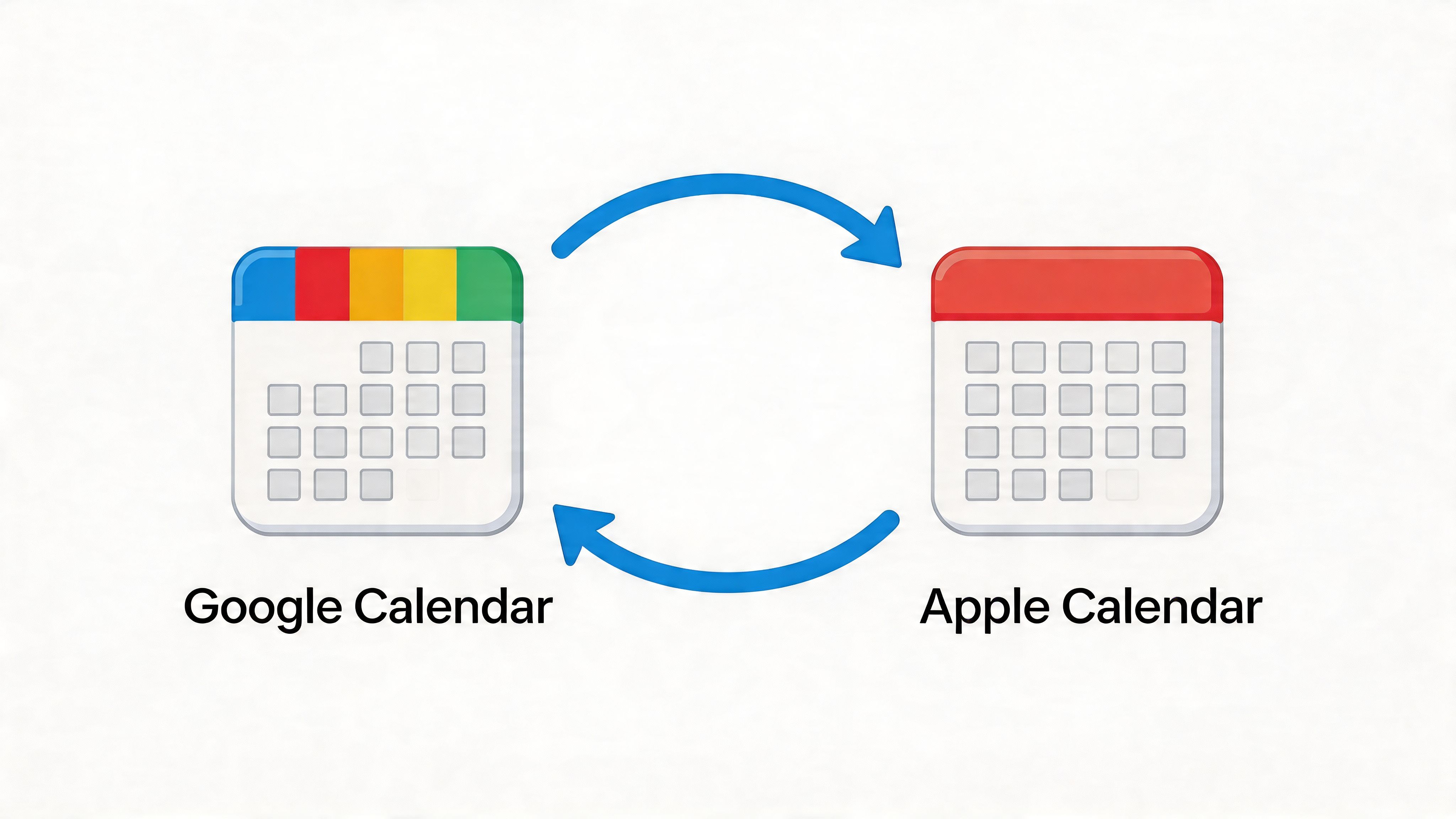
Google notes that native two-way sync between Google and Apple Calendars has been available since iOS 5 in 2011, and the same support guidance states that in 2024 an estimated 68% of iPhone business users maintain a Google Calendar sync, with changes propagating in under 5 seconds (Google support for iPhone and iPad sync). That’s why this method is the default for people with an active Google-based work life.
Who should use live sync
This setup fits three groups especially well:
Work on Google, personal on Apple. You need one calendar view on your phone, but your company still books everything through Google.
You manage active team calendars. Shared calendars and invite updates are easier to live with when the connection stays current.
You travel often. Schedule changes, cancellations, and moved meetings don’t wait for manual imports.
If you want a second walkthrough from a different angle, this guide on how to sync Google Calendar with iCal is useful for checking device-specific details.
Set up on iPhone or iPad
On iPhone or iPad, go to:
Settings
Calendar
Accounts
Add Account
Google
Sign in with your Google account. During setup, you can turn off Mail and Contacts if you only want calendar access.
That selective toggle matters. Many people want the calendar visibility but don’t want to merge inboxes or contact books across personal and work accounts.
A connected setup becomes much easier to manage when your calendar and email actions sit in one workflow. If that’s relevant to how you operate, https://www.superchat.ai/features/email-calendar shows what that kind of combined setup can look like.
For a visual walkthrough, this video covers the process clearly:
Set up on Mac
On Mac, open:
System Settings
Internet Accounts
Add Account
Google
Authenticate, then enable Calendars.
After that, open Apple Calendar and make sure the Google calendars you want are visible in the sidebar. If they’re hidden, the sync may be working fine but you won’t see the events.
A live sync setup isn’t a migration. It’s an ongoing bridge. Treat Google as still active, because it is.
One more practical note. Keep naming conventions clear. If you have “Work,” “Personal,” and “Travel” calendars in both ecosystems, color and label them carefully so you know which system owns the event.
Solving Common Export and Sync Problems
Most calendar transfers don’t fail completely. They fail partially, which is more annoying. The events appear, but not quite right. A few duplicate. One recurring meeting shifts. An all-day event lands on the wrong date after travel.
The good news is that the usual problems are predictable. Mindstick reports that duplicate events have a 20% incidence rate if users don’t first import into a temporary calendar, and timezone shifts affect 5% to 8% of migrations, especially around recurring events that cross daylight saving boundaries (Mindstick guide on merging Google Calendar with iCloud).
Duplicates after import
Duplicates usually come from one of three causes:
importing the same .ics file more than once
importing into a calendar that already contains similar events
mixing a one-time import with an existing synced Google account
Use this cleanup order:
Check account connections first. If the Google account is already syncing into Apple Calendar, turn that off before testing a manual import.
Isolate imported events. If you used a temporary calendar, review it there instead of hunting through your main calendar.
Delete the bad batch in one move. It’s much faster to remove a whole imported calendar than to clean duplicate meetings one by one.
Re-import once. Then verify a few date ranges before you merge anything.
Timezone shifts and daylight saving issues
Timezone errors are usually a settings mismatch, not corrupted data.
Before importing or syncing, check:
Google Calendar timezone
Apple device timezone
Apple Calendar timezone support settings
Any recurring events that span daylight saving changes
A practical test helps. Pick one recurring meeting that crosses a seasonal clock change and compare it on both platforms before trusting the rest of the calendar.
If times are wrong, stop and diagnose before adding more events. Calendar errors compound fast because every new booking assumes the existing schedule is accurate.
When sync looks stuck
A synced calendar can look broken when it’s only hidden or delayed.
Try this short checklist:
Confirm the Google account is still signed in on the Apple device.
Open Apple Calendar and check whether the Google calendars are selected for display.
Add a small test event in Google Calendar and wait briefly to see if it appears.
If not, remove and re-add the account rather than stacking more troubleshooting on top of a stale connection.
That reset often clears invisible account permission issues with less effort than deep debugging.
Advanced Questions About Your Calendar Migration
Power users usually don’t worry about basic events. They worry about the edge cases that blow up a packed week.
Do recurring events transfer perfectly
Not always. Apple Discussions users have flagged a recurring issue where standard ICS exports can flatten or mishandle recurring events with exceptions, and forum reports indicate 20% to 30% of migrations face duplicates or lost changes in those cases (Apple Discussions thread on Google to Apple calendar migration).
That matters if you have series like:
weekly leadership meetings with occasional skipped dates
monthly billing reviews moved for holidays
recurring travel holds edited one instance at a time
The safest approach is to audit your most complex recurring series after import. Don’t spot-check only single events.
What happens to attachments notes and rich location data
Export and sync exhibit very different behaviors.
A one-time ICS export is best treated as a transfer of core event structure. Title, date, and standard scheduling data usually come across. Richer Google-specific details may not. If an event matters because it contains attached documents, detailed location metadata, or custom fields, verify those manually after migration.
Live sync is usually better when those details remain operationally important because the event still lives in Google’s ecosystem.
Should you export shared calendars
You can, but shared calendars deserve extra caution. They often contain recurring events, edits by multiple people, and old history you may not need.
For shared calendars:
export only if you’re making a true cutover
import into a separate Apple calendar first
review ownership and relevance before mixing it into your main view
If your calendar is packed with meetings that need summaries, follow-ups, and action capture after the migration, https://www.superchat.ai/blogs/ai-meeting-assistant is a practical next step for keeping the operational side organized.
If your schedule spans meetings, travel, payments, and follow-ups, Superchat helps bring those moving parts into one private workflow. You can manage calendar tasks, coordinate changes, and keep day-to-day execution in a single place without bouncing between apps.


