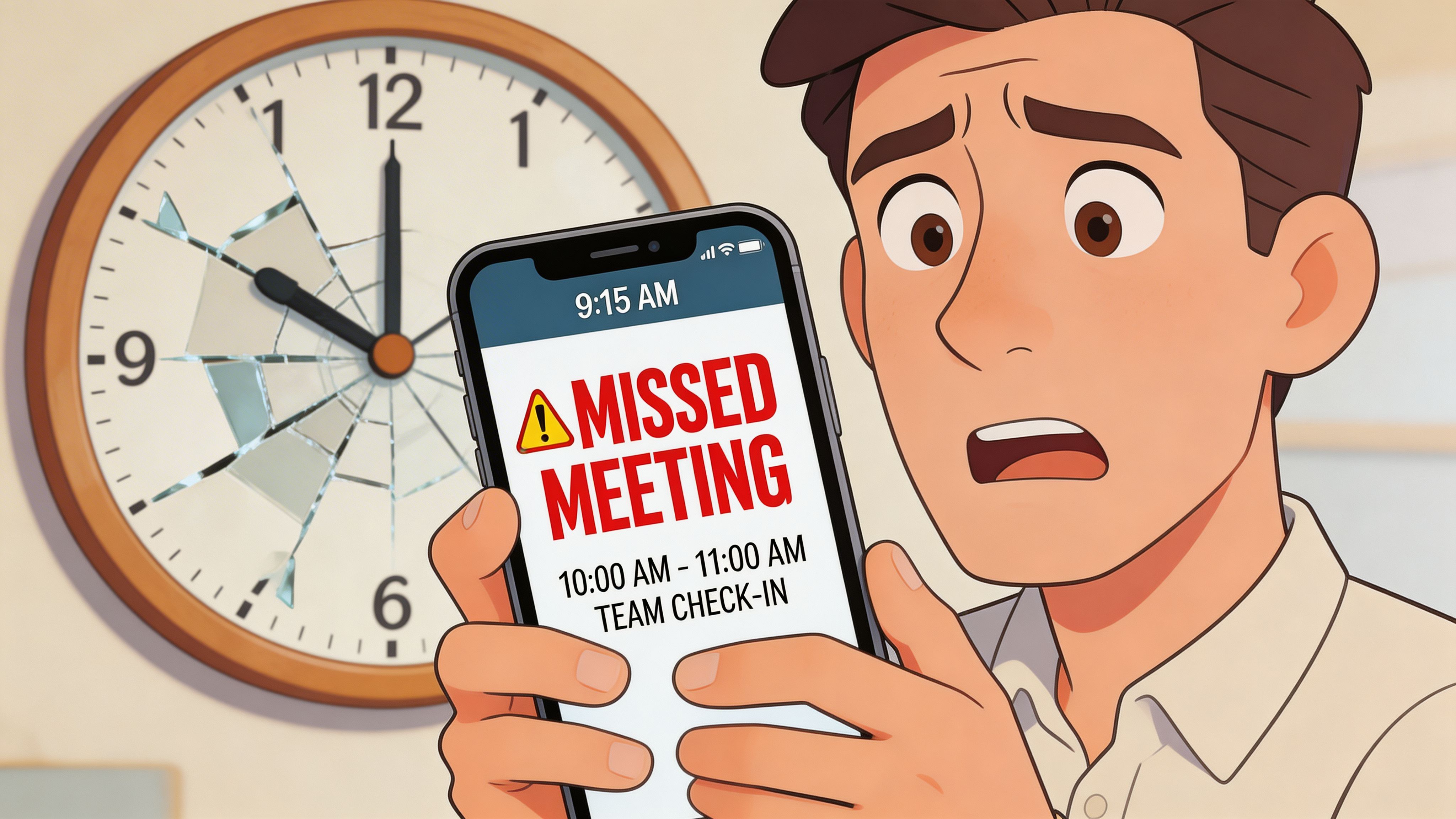
You check your phone at 9:12. The meeting started at 9:00. No banner. No sound. No lock screen reminder. Just the sinking realization that everyone else joined, and you’re the person who “must have missed the invite.”
Many users blame Calendar. That’s usually the wrong target.
The iPhone’s built-in calendar alerts have been around since the original iPhone OS in 2007, with reminder windows from 5 minutes to 2 days before an event, and they’ve become a core part of how professionals run their day on Apple devices at scale (Dummies on iPhone calendar alerts). The problem isn’t that calendar alerts iphone features are weak. It’s that the default setup is passive, inconsistent, and often one hidden setting away from failure.
A reliable alert system needs more than a single beep. It needs layered reminders, sane defaults, visible notification delivery, and a way to catch the subtle failures that hit synced calendars, Focus modes, and dual alerts.
Table of Contents
Why Your Default Calendar Alerts Are Failing You
The default setup is built for average use
Why people think Calendar is broken
Set Up Your Core Alert System
Choose default alerts that match your real schedule
Use two alerts for events that matter
A practical baseline that works
Customize How and When You See Notifications
Make alerts visible, not merely enabled
Use Customized Notifications and time to leave wisely
Focus should filter noise, not hide commitments
Troubleshoot Alerts That Don't Appear
Check the hidden calendar-level problem first
When the second alert fails
A fast diagnosis order
Use Advanced Alerts for Peak Productivity
Let Siri create cleaner events
Use travel-aware reminders selectively
Handle travel and time zones without surprises
Go Beyond Alerts with an AI Assistant
Why Your Default Calendar Alerts Are Failing You
A missed alert rarely comes from one dramatic breakdown. It usually comes from a chain of small, boring decisions.
You accept a meeting from Google Calendar. It lands on the right day, but without the reminder pattern you need. You leave the default alert alone. Later, you enable Focus to get through deep work. Then you assume “notifications are on,” so everything is fine. It isn’t.
The built-in Calendar app offers greater utility than it is often given credit for. It can warn you well before an event, wake a locked device, and support more than one reminder for the same appointment if you configure it properly. But factory defaults are designed to be broadly acceptable, not professionally reliable.
The default setup is built for average use
If your day has low-stakes events, a single reminder may be enough. That’s not how most executives, founders, consultants, recruiters, or frequent travelers work.
A packed schedule has different event types:
Internal meetings need a short lead time.
Client calls need preparation time.
Travel appointments need buffer for movement and delays.
Deadlines often need a reminder the day before, not only at the last minute.
Treating all events the same is what creates blind spots.
Practical rule: If an event would create damage when missed, it should never rely on one alert alone.
Why people think Calendar is broken
In practice, users often confuse three separate issues:
Problem | What it feels like | What’s usually happening |
|---|---|---|
Alert timing is wrong | “I got reminded too late” | Defaults don’t match the event type |
Alert delivery is weak | “I never saw it” | Banner, sound, lock screen, or Focus settings are limiting visibility |
Alert reliability is inconsistent | “Some events notify, some don’t” | Synced calendars or multi-alert behavior are failing in specific cases |
That distinction matters. If you fix only the notification style but not the event logic, you’ll still miss things. If you add more alerts without reducing noise, you’ll train yourself to ignore them.
The answer isn’t more notifications. It’s a better system.
Set Up Your Core Alert System
The strongest calendar alerts iphone setup starts with a baseline you don’t have to think about every day.
That means setting defaults once, then using per-event overrides only when the event deserves extra protection.
Choose default alerts that match your real schedule
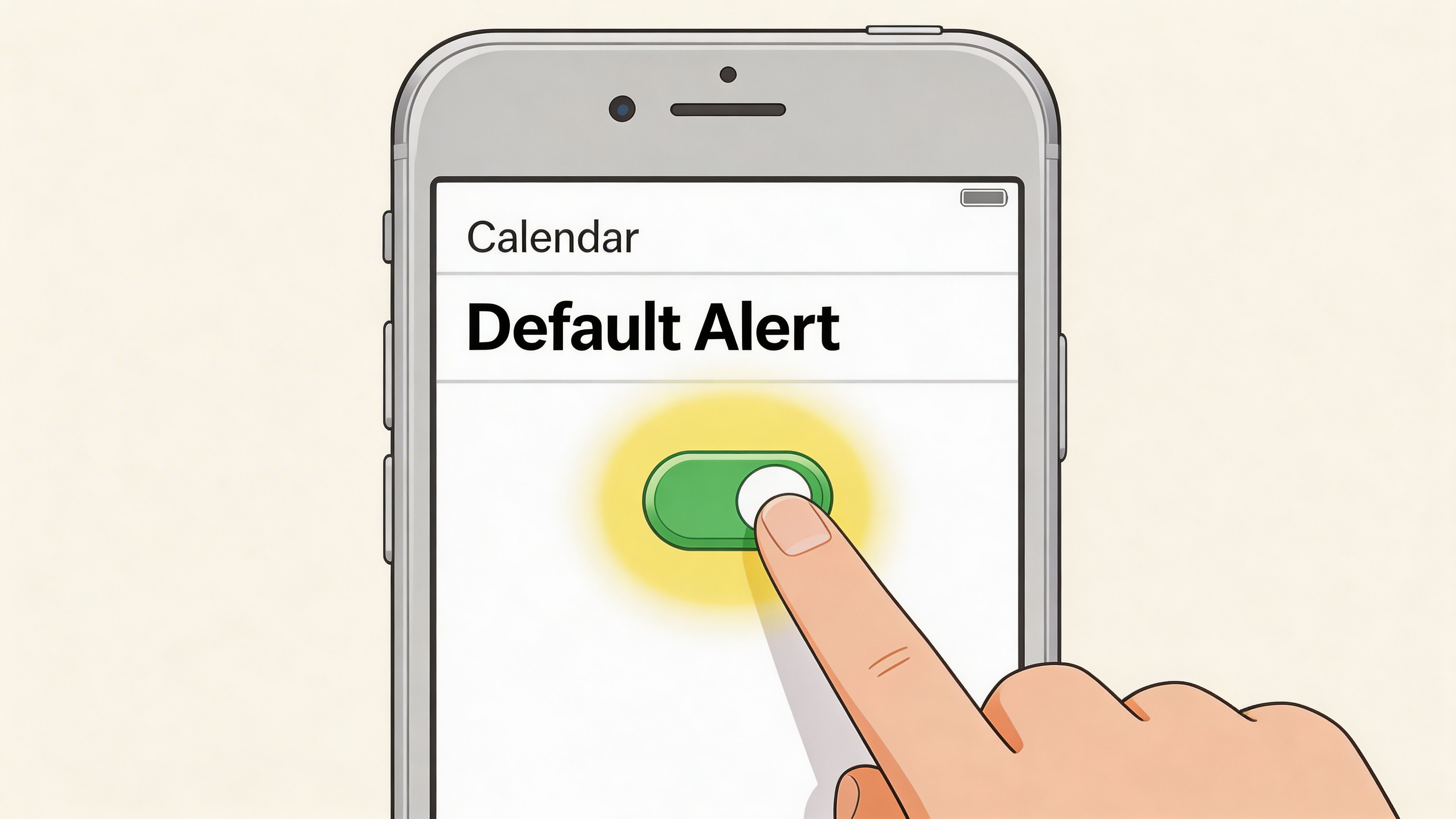
Go to Settings > Calendar > Default Alert Times.
You’ll typically see separate defaults for standard events and all-day events. Users should then move past generic settings and begin matching reminders to their actual behavior.
A practical approach:
Standard events often work best with a short reminder that gives you enough time to wrap up what you’re doing and switch context.
All-day events usually need an earlier reminder, often the prior evening or the morning before the day gets crowded.
Apple Calendar supports default reminders from 5 minutes to 2 weeks ahead, and those defaults can apply across synced Apple devices when you use the same ecosystem setup, including iPhone, iPad, Mac, and Apple Watch, as summarized in Cal.com’s Apple Calendar guide.
The mistake is going too aggressive.
If every routine event gets urgent treatment, alert fatigue shows up fast. Productivity forum reports cited in that same guide describe 20-30% of users ignoring important alerts when defaults become too noisy. That’s why I recommend calm defaults and stronger overrides only for high-consequence events.
Use two alerts for events that matter
Open any event in Calendar, tap Edit, then tap Alert.
You can set the first reminder, then add a Second Alert, making the app much more useful for professionals.
One alert handles preparation. The second handles execution.
For example, a client presentation might use:
First alert: the day before, so you review slides and notes
Second alert: shortly before start time, so you move into the meeting without rushing
That layered setup is far more dependable than relying on memory or a single warning.
If you want a more active workflow around follow-ups and time-based nudges outside the stock Calendar logic, tools like active alerts are worth reviewing because they show how teams structure reminders around actual action, not just event awareness.
For people who also coordinate email and scheduling together, it helps to centralize those workflows instead of bouncing between inbox and calendar. This overview of connected email and calendar workflows is useful if your missed meetings usually start as missed follow-ups.
A quick visual walkthrough helps if you prefer seeing the taps in sequence:
A practical baseline that works
I wouldn’t configure every event the same way. I’d split them by consequence.
One reminder is enough for ordinary events. Important events deserve a setup that catches both preparation and transition.
Here’s a simple working model:
Event type | Best setup | Why it works |
|---|---|---|
Routine internal meeting | One short alert | Enough to switch context |
Client call or interview | Two alerts | One to prepare, one to join |
Deadline or deliverable | Early alert plus near-time alert | Prevents last-minute scrambling |
All-day personal date | Early reminder | Keeps it visible before the day fills up |
This is the point where most missed meetings stop being “calendar problems” and start becoming personal discipline problems, which is exactly where you want to be.
Customize How and When You See Notifications
An alert that exists but never surfaces at the right moment is useless.
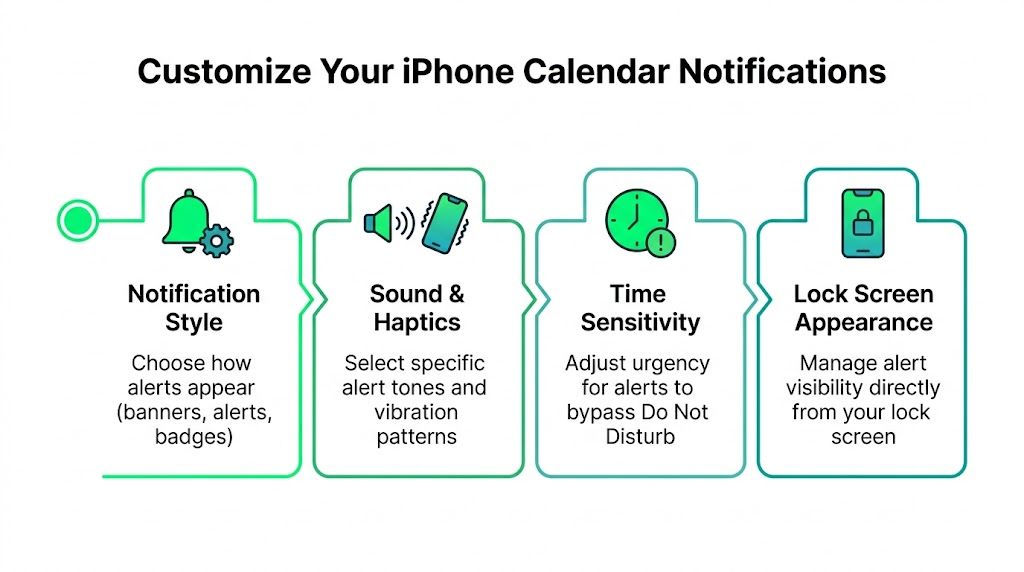
The next layer is delivery. Open Settings > Notifications > Calendar and inspect what Calendar is allowed to do on your iPhone, not what you assume it does.
Make alerts visible, not merely enabled
Start with Allow Notifications. Then look at the delivery surfaces:
Lock Screen is the safety net. If your phone is idle, this is often where you’ll catch the reminder.
Notification Center is the archive. Useful, but too passive to rely on alone.
Banners are the interruption layer. For time-sensitive events, this is usually the most important one.
Sounds matter more than people admit. Silent calendar alerts disappear in busy workdays.
If you only enable Notification Center, your alert may technically fire while remaining easy to miss.
A better setup for most professionals is a combination of Lock Screen, banners, and sound. That gives the event multiple chances to break through without forcing every app to behave the same way.
Use Customized Notifications and time to leave wisely
Apple added Customized Notifications in iOS 18, which lets you control specific triggers like Upcoming Events and Invitee Responses, and Apple also supports location-aware time to leave alerts that adjust using Maps traffic data, which matters in busy cities where delays can average 20-30 minutes (Apple’s iPhone event notification guide).
That doesn’t mean every event should get a travel-aware reminder.
Use location-based alerts when travel friction is part of the event. Good examples:
Airport runs
In-person client meetings
Medical appointments
Cross-town meetings during rush hour
Skip them for calls, desk work, and routine blocks. Otherwise your notification stack starts solving a problem you don’t have.
If you want another layer for managing alert visibility across apps and workflows, this page on connected notification controls is a useful reference for thinking beyond the stock iPhone settings.
Focus should filter noise, not hide commitments
Focus is excellent when it’s configured with intent. It’s dangerous when it’s set broadly and forgotten.
Check each Focus mode you use during the workday. Ask one question: if a meeting starts inside this mode, do I still want to see it?
The best Focus setup blocks random app chatter and still lets your calendar interrupt you when the interruption is the work.
If the answer is yes, your calendar alerts need to stay visible inside that Focus configuration. Many people turn on deep-work settings, then accidentally bury the very reminders that should cut through.
A good test is simple. Create a short event a few minutes ahead. Lock the phone. Leave Focus on. Confirm whether the alert appears the way you expect. If it doesn’t, don’t trust the setup just because the toggles look “on.”
Troubleshoot Alerts That Don't Appear
When calendar alerts iphone reminders fail, most advice starts in the wrong place.
People go straight to Settings > Notifications > Calendar and stop there. That’s useful, but it misses one of the most common failures in professional setups: the specific calendar source itself.
Check the hidden calendar-level problem first
If you use iCloud, Google, Exchange, or a mix of work and personal accounts, global notification settings may be correct while one calendar remains effectively muted.
Apple Communities discussions show 100+ threads since 2023 around synced calendar alerts failing because a hidden per-calendar setting was disabled, with anecdotal patterns pointing to a 20-30% failure rate in multi-account setups (Apple Communities thread on synced calendar alert failures).
That’s why a meeting from one account may notify you while another stays silent.
Check these areas in order:
Calendar app > Calendars
Confirm the relevant calendar is enabled and visible.Account-specific calendar settings
If the failing event always comes from the same source, test that source directly with a new event.Global notification settings
Useful, but only after you verify the source calendar isn’t the underlying problem.
This is one of those fixes that feels too small to matter until it solves months of random misses.
When the second alert fails
Dual alerts are powerful, but they aren’t always perfectly reliable in real-world conditions.
A common under-documented issue after iOS 17 is that the second alert may fail when Focus modes or Low Power Mode interfere, especially for users who depend on chained reminders for travel and executive scheduling, as discussed by users in accessibility and troubleshooting communities in the video referenced here: discussion of multiple alert reliability issues.
That creates a specific kind of false confidence. You think you have redundancy, but the backup reminder is the one that disappears.
A fast diagnosis order
Don’t troubleshoot randomly. Use a sequence.
Test one local event first
Create a short event directly on the iPhone and see if it alerts correctly. This tells you whether the problem is system-wide or tied to a synced source.Turn off Low Power Mode temporarily
If second alerts are inconsistent, this is one of the first variables worth removing.Review active Focus modes
Not all suppression is obvious. Some setups allow one style of notification but hide another.Try a different calendar source
If iCloud works and Exchange doesn’t, you’ve narrowed the issue quickly.Reduce complexity for one day
Use a single important event with two alerts and watch exactly what happens.
If one calendar behaves and another doesn’t, stop blaming the phone. Start tracing the account or source.
The biggest reliability gain often comes from disciplined testing, not from toggling five settings at once and hoping one of them was the cause.
Use Advanced Alerts for Peak Productivity
Once the basics are stable, the iPhone becomes more than a reminder device. It turns into a planning tool that helps you arrive prepared, not merely on time.
Let Siri create cleaner events
Siri is underrated for calendar capture.
If you create an event the moment it enters your head, you reduce the chance that it lives in notes, messages, or memory for too long. Voice creation is especially useful when you’re walking between meetings, leaving a car, or handling travel.
Use direct phrasing. Keep it simple. For example, tell Siri to create a meeting tomorrow afternoon and remind you before it starts. The main advantage isn’t speed alone. It’s consistency. Fast capture means fewer “I’ll add it later” failures.
Use travel-aware reminders selectively
Time-based reminders are helpful. Travel-based reminders are better when movement is the risk.
If you have an in-person meeting across town, time to leave can be more valuable than a standard alert because it reflects the actual constraint. A fifteen-minute warning doesn’t help if traffic has turned a short drive into a much longer one.
That said, don’t use travel-aware alerts for every in-person commitment. Reserve them for:
Meetings in unfamiliar locations
Airport and station departures
Appointments in congestion-heavy areas
Days with back-to-back movement
This keeps the alert system meaningful. Precision matters more than volume.
Handle travel and time zones without surprises
Frequent travelers run into a different class of problem. The event itself is correct, but the reminder doesn’t match the mental model of the day.
A few habits help:
Situation | Better move | Reason |
|---|---|---|
Flight followed by a meeting | Separate alerts for each event | One reminder can’t cover two transitions |
Hotel check-in and dinner plan | Use distinct calendars or titles | Reduces glance confusion |
Cross-time-zone day | Confirm event time after landing | Travel shifts context fast |
The under-documented catch is that some professionals rely on two alerts for a chain of moments, such as airport departure and then meeting arrival. When multiple alerts behave inconsistently under Focus or Low Power conditions, that chain breaks. For those days, simpler is often safer. Use fewer but more deliberate alerts, and check them before travel starts.
A calendar should reduce cognitive load. If your event setup makes you re-interpret your day every time you glance at it, it’s too complicated.
Go Beyond Alerts with an AI Assistant
A well-configured calendar can remind you. It still can’t act for you.
It won’t reschedule the meeting you can’t make. It won’t draft the follow-up email after the call. It won’t coordinate the travel booking that sits before the event or the expense trail that follows it. Native alerts are strong at prompting. They’re weak at execution.
That’s where an AI assistant becomes useful. Not as a replacement for Calendar, but as the operational layer around it.
If you’ve been comparing modern AI Productivity Tools, the big dividing line is simple: does the tool just surface information, or does it help complete the next action? For busy professionals, that difference matters more than clever summaries.
The practical next step is connecting your schedule to the work that surrounds it. A meeting often triggers email, travel, reminders, payments, and rescheduling. Putting those actions in one flow saves more time than endlessly refining notification settings. This is why the shift from calendar app to assistant matters, and it’s explored well in this piece on how an AI personal assistant boosts productivity.
The native iPhone setup should still come first. You want the operating system layer to be dependable. But once your alerts are reliable, the bigger win is reducing everything that happens before and after the alert.
If your calendar reminds you but your day still feels fragmented, Superchat is worth trying. It connects scheduling with the actions around it, so you can manage follow-ups, bookings, messages, and planning from one place instead of juggling separate apps.
Written with Outrank app


